
Meet FoolFish AI Game Tools: a Games MCP Server You Can Use Today
FoolFish AI Game Tools is live. Its first tool, FoolFish Games MCP, lets a compatible AI assistant search our browser games and read official gameplay guides. This walkthrough takes you from the server address to a useful first game recommendation.
A new home for FoolFish AI tools
The AI Game Tools collection gives our public AI tools a place of their own. Start with FoolFish Games MCP to discover a game, look up its controls or read a playing guide without breaking the flow of your conversation. Open the returned source link when you are ready to play.
This is a game-discovery connection. If you are looking for AI tools for games that generate artwork, build levels or coach competitive matches, those are different jobs. Our current tool helps you choose from published FoolFish browser games and understand their rules. Future tools will appear in the collection when they are available.
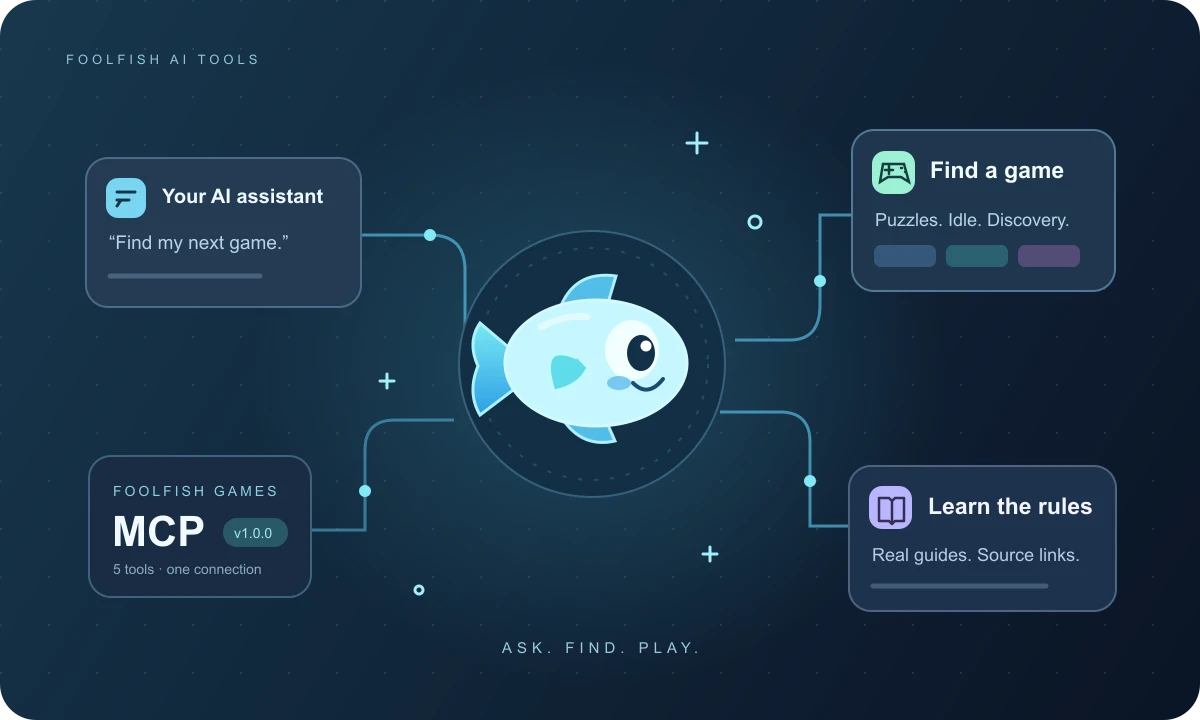
What is a games MCP server?
MCP stands for Model Context Protocol. It gives a compatible AI application a standard way to call tools supplied by another service. In this case, your assistant can request information from the FoolFish catalog instead of relying only on what it already knows.
FoolFish Games MCP is a remote MCP server: we host it, and your client connects through an HTTPS address. You do not download a server or run a local game database. The client decides when to call a tool and how to present its answer.
The server address is https://foolfishgames.com/mcp. It uses Streamable HTTP and needs no FoolFish account or API key. FoolFish does not charge for the connection; your AI client may still have a subscription, usage limits or restrictions on custom connections.
FoolFish Games MCP 1.0.0: five tools, one catalog
The first release is listed in the official MCP Registry as com.foolfishgames/games. It exposes five read-only tools. Each has a specific job, so an assistant can search first and retrieve the full details only when it needs them.
Catalog data is cached for five minutes and published guides are exported on a five-minute schedule. Newly published content can take up to two cache cycles to appear. Results include source and freshness information; if a source is stale, do not treat the cached answer as a live availability check.
- search_games — find published games by title or description, with category and device filters.
- get_game — retrieve one game’s goal, how to play, controls, supported devices and source page.
- recommend_games — find catalog matches for your interests and return the reason for each match.
- search_guides — look up published gameplay guides and articles.
- get_guide — retrieve a selected guide’s instructions and strategy sections with its source link.
How to use FoolFish Games MCP
Start on the FoolFish Games MCP connection page, where you can copy the exact endpoint. Choose an AI client that supports remote MCP over Streamable HTTP. An ordinary chat website without a custom MCP connection option cannot connect just because you paste the address into a conversation.
Menu names vary by application. Look for its MCP servers, connectors or tools settings, then follow this sequence. Review the client’s connection and tool permissions when prompted; there is no FoolFish developer registration step.
- Add a remote server and name it FoolFish Games.
- Paste https://foolfishgames.com/mcp as the server URL. Select HTTP or Streamable HTTP if the client asks for a transport.
- Save the connection and let the client discover the tools. You should see the five tool names listed above.
- Enable the connection for your conversation and ask it to use FoolFish Games to find a puzzle game with touch controls.
- Inspect the returned game and source link. Ask for its controls or a guide, then open the game page to start playing.
One concrete setup example: VS Code
In a current VS Code installation with a configured chat provider, open the Command Palette and run MCP: Add Server. Choose an HTTP server, enter https://foolfishgames.com/mcp and give it a recognizable name such as foolfish-games. Choose where to save the configuration.
Use MCP: List Servers to inspect or start the server. Review the trust prompt, then open Chat and use its Configure Tools control to check that the FoolFish tools are available. Ask a question that explicitly names FoolFish Games so you can see whether the assistant uses the connection.
If you maintain configuration files yourself, the MCP connection page has a copyable example using an mcpServers object. Configuration formats vary: the VS Code-specific .vscode/mcp.json format uses a servers object. Follow your client’s current documentation rather than pasting one application’s entire file into another. The official VS Code instructions are linked under Explore next.
Try an AI game finder with useful constraints
A specific request is more useful than “find the best game.” Tell your assistant the mechanics you want and the device you will use. For example: “Use FoolFish Games to find three puzzle games with touch controls. Explain the goal of each and include the game links.” The result can then be checked against the published listing.
For an idle-game session, try: “Find Fish Playground Idle on FoolFish Games. Explain how water connections and fish merging affect progress, then give me its beginner guide.” Follow up on the rule that interests you, and open Fish Playground Idle or the reef strategy guide to see the full explanation.
For a game you have already found, try: “Find SizeItUp on FoolFish Games and explain how I submit a size guess.” Open SizeItUp to compare the instructions with the actual game. You can also ask for the published FoolFish RNGdle guide and use the source link to check what the article says.
AI game recommendations here come from catalog information, not a personal skill assessment or private play history. Ask the assistant to distinguish the facts returned by a tool from its own suggestion. A mobile-support label also does not prove that every browser and device has been tested.
Common MCP setup problems and fixes
The endpoint shows an error in my browser. The /mcp address is for protocol requests, not a normal web page. Opening it directly sends a browser GET request, which is not how this service starts an MCP conversation. Use the public connection page for reading and paste the endpoint into your client’s server settings.
My assistant cannot see the tools. Confirm that the client supports a remote HTTP connection, that the URL ends in /mcp, and that the server is enabled for the current chat. Inspect the client’s MCP server status before changing your prompt. A response written without a tool call does not demonstrate that the connection worked.
A request returns no games or guides. Start with an exact title, then broaden the request or remove a device filter. The tool only searches our published public catalog and guides; it is not a search engine for every game on the web.
A new game or guide is not showing yet. Allow the catalog and guide refresh cycles to complete, then search again. If the returned freshness information indicates an ongoing problem, use our contact page and include the public game or guide URL and the error message.
Public AI tools, with no developer registration
Using this free MCP server does not make you a FoolFish developer. The public connection cannot upload games, publish content, change saves or retrieve private player accounts. Game publishing remains in the restricted workspace.
MCP also does not play a game inside the assistant or solve a live board automatically. It returns game information and guide content. You decide which link to open, and the game runs on its normal browser page.
You can always skip the assistant and browse our puzzle games or playing guides directly. AI Game Tools adds another route into the same games and editorial sources.
Where to find future tools and MCP updates
Bookmark FoolFish AI Game Tools for the available tools and the MCP connection guide for the current endpoint and capabilities. This article documents the 1.0.0 launch on October 14, 2026. New games and published guides can enter the catalog without changing the server address.
The official Registry helps compatible clients and directories discover the service. A Registry listing does not automatically connect it to your assistant: you still need to add or enable the server in a client that supports it. Start with one search, verify its source link and build from there.
Common questions
Is FoolFish Games MCP free?
FoolFish provides this public MCP connection without a fee or API key. Your AI assistant may have separate costs or connection limits.
Can I use it as an AI gaming assistant?
A compatible assistant can use it to find FoolFish games and explain published rules and guides. It does not observe live gameplay or coach competitive matches.
Does the tool need my Google account?
FoolFish Games MCP does not require a FoolFish or Google login. Your chosen AI application may require its own account.